> ## Documentation Index
> Fetch the complete documentation index at: https://docs.maddergames.com/llms.txt
> Use this file to discover all available pages before exploring further.
# Integrate Madder
> Integrate Madder into your Unity project
## Set up the Scene
Drag the `MadderManager` and `MadderControllerManager` prefabs from `Packages > Madder Starter Pack > Runtime > Prefabs`
into your scene. These prefabs are Singleton classes and will persist across scene loads. These are the core components
of the Madder system and are required for Madder to work with your game.
If you do not see the `Madder Starter Pack` folder or any other packages, they
may be hidden. Click the visibility button to toggle them on.
 Additionally, drop the `SampleGameManager`, `SamplePlayerManager`, and
`MadderControllerTest` prefabs into your scene. These prefabs are examples of
how you might interact with the Madder system.
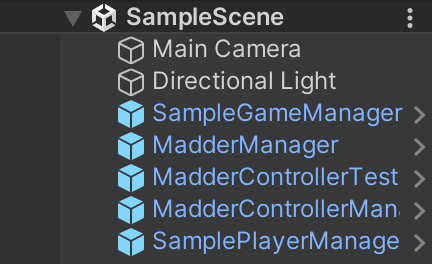
Here's an example of what your scene hierarchy might look like:
Additionally, drop the `SampleGameManager`, `SamplePlayerManager`, and
`MadderControllerTest` prefabs into your scene. These prefabs are examples of
how you might interact with the Madder system.
Here's an example of what your scene hierarchy might look like:
 For this tutorial, we have provided a sample `PlayerInput` asset that has
pre-loaded input actions and bindings. If you are following this tutorial with
your own assets, see the [Madder Controller
Usage](/madder-classes/madder-controller#usage) for more information on how to
bind your input actions to the Madder Controller.
### Examining the Sample Scripts
Before we move on, let's take a look at what each script is doing:
```csharp SamplePlayerManager.cs theme={null}
public class SamplePlayerManager : MonoBehaviour
{
[SerializeField] private GameObject playerPrefab;
[SerializeField] private InputActionAsset inputActions;
private Dictionary playerInputs = new Dictionary();
private void Awake()
{
//subscribe to RegisterMadderController event
MadderManager.onRegisterMadderController += OnRegisterMadderController;
}
```
The `SamplePlayerManager` class is responsible for creating and managing players in the unity scene. On `Awake`, we
subscribe to the `onRegisterMadderController` event in the [MadderManager](/madder-classes/madder-manager) class. When
the Madder server signals that a new player has connected to the room code, the `MadderManager` will trigger this event,
and the `SamplePlayerManager` will create a new player in the scene.
```csharp SamplePlayerManager.cs theme={null}
private void OnRegisterMadderController(MadderPlayer madderPlayer)
{
RegisterPlayer(madderPlayer.name);
}
public void RegisterPlayer(string gamername)
{
// Create a new player at a random location between (0,0,0) and (4,4,0)
GameObject player = Instantiate(playerPrefab, new Vector3(Random.Range(0, 4), Random.Range(0, 4), 0), Quaternion.identity);
player.name = gamername;
Debug.Log("Player created: " + player.name);
```
Next, we need to associate the player with the Madder Controller. We create a new `PlayerInput` object and assign it to
the player. When you create a new `PlayerInput` object, Unity automatically checks for available input devices and will
assign the Madder Controller to the player. See the [Madder Controller](/madder-classes/madder-controller) class for more
information.
```csharp SamplePlayerManager.cs theme={null}
PlayerInput playerInput = player.AddComponent();
if (playerInput == null)
{
Debug.Log("PlayerInput is null");
}
//We must clone the inputActions to avoid sharing the same instance between players
InputActionAsset clonedinputActions = Instantiate(inputActions);
playerInput.actions = clonedinputActions;
//Store the PlayerInput instance
playerInputs[gamername] = playerInput;
//Initialize the player controller
SamplePlayer playerController = player.GetComponent();
playerController.Initialize(playerInput);
}
```
The SamplePlayerManager class also contains a `UnregisterPlayer` method that removes a player from the scene. This method
is called when the Madder server signals that a player has left the game room.
We also have a helper method called `TryGetPlayerInput` that allows other classes to access the `PlayerInput` object for
a given player, if needed.
```csharp SamplePlayerManager.cs theme={null}
private void onUnregisterMadderController(MadderPlayer madderPlayer)
{
UnregisterPlayer(madderPlayer.name);
}
public void UnregisterPlayer(string gamername)
{
if (playerInputs.TryGetValue(gamername, out var playerInput))
{
playerInputs.Remove(gamername);
Destroy(playerInput.gameObject);
}
}
public bool TryGetPlayerInput(string gamername, out PlayerInput playerInput)
{
return playerInputs.TryGetValue(gamername, out playerInput);
}
}
```
```csharp SamplePlayerManager.cs theme={null}
using System.Collections;
using System.Collections.Generic;
using UnityEngine;
using UnityEngine.InputSystem;
public class SamplePlayerManager : MonoBehaviour
{
[SerializeField] private GameObject playerPrefab;
[SerializeField] private InputActionAsset inputActions;
private Dictionary playerInputs = new Dictionary();
private void Awake()
{
//subscribe to RegisterMadderController event
MadderManager.onRegisterMadderController += OnRegisterMadderController;
}
private void OnRegisterMadderController(MadderPlayer madderPlayer)
{
RegisterPlayer(madderPlayer.name);
}
public void RegisterPlayer(string gamername)
{
// Create a new player at a random location between (0,0,0) and (4,4,0)
GameObject player = Instantiate(playerPrefab, new Vector3(Random.Range(0, 4), Random.Range(0, 4), 0), Quaternion.identity);
player.name = gamername;
Debug.Log("Player created: " + player.name);
PlayerInput playerInput = player.AddComponent();
if (playerInput == null)
{
Debug.Log("PlayerInput is null");
}
//We must clone the inputActions to avoid sharing the same instance between players
InputActionAsset clonedinputActions = Instantiate(inputActions);
playerInput.actions = clonedinputActions;
//Store the PlayerInput instance
playerInputs[gamername] = playerInput;
//Initialize the player controller
SamplePlayer playerController = player.GetComponent();
playerController.Initialize(playerInput);
}
private void onUnregisterMadderController(MadderPlayer madderPlayer)
{
UnregisterPlayer(madderPlayer.name);
}
public void UnregisterPlayer(string gamername)
{
if (playerInputs.TryGetValue(gamername, out var playerInput))
{
playerInputs.Remove(gamername);
Destroy(playerInput.gameObject);
}
}
public bool TryGetPlayerInput(string gamername, out PlayerInput playerInput)
{
return playerInputs.TryGetValue(gamername, out playerInput);
}
}
```
The SampleGameManager class exists in this sample to facilitate testing and simulating Madder controller inputs. The
`SampleGameManager` class finds the `MadderControllerTest` object in the scene, which sends inputs to the Madder Manager
as if they were coming from a player's controller.
```csharp SampleGameManager.cs theme={null}
using System.Collections;
using System.Collections.Generic;
using UnityEngine;
public class SampleGameManager : MonoBehaviour
{
private static SampleGameManager Instance { get; set; }
private MadderControllerTest madderControllerTest;
private void Awake()
{
if (Instance != null && Instance != this)
{
Destroy(this.gameObject);
return;
}
Instance = this;
DontDestroyOnLoad(this);
}
void Start()
{
//only call the following if not in the editor
#if UNITY_WEBGL && !UNITY_EDITOR
MadderMessager.ShowCode();
#endif
}
// Update is called once per frame
void Update()
{
#if UNITY_EDITOR
if (Input.GetKeyDown(KeyCode.J))
{
Debug.Log("Testing Madder Controller");
madderControllerTest = FindObjectOfType();
madderControllerTest.TestMadderInput();
}
#endif
}
}
```
The MadderControllerTest simulates Madder controller inputs and sends it to the Madder Manager. The function
`TestMadderInput` registers a new Madder controller with a random name and sends a new controller state with different
values after 5 seconds.
```csharp MadderControllerTest.cs theme={null}
using System.Collections;
using System.Collections.Generic;
using UnityEngine;
/*
* MadderControllerTest
* This class is used to test the MadderController class.
* This class can be altered.
*/
public class MadderControllerTest : MonoBehaviour
{
public void TestMadderInput()
{
//Register a new madder controller with a random name
const string chars = "abcdefghijklmnopqrstuvwxyz";
string randomName = "";
for (int i = 0; i < 4; i++)
{
randomName += chars[Random.Range(0, chars.Length)];
}
MadderPlayer madderPlayer = new MadderPlayer();
madderPlayer.name = randomName;
string madderPlayerJson = JsonUtility.ToJson(madderPlayer);
MadderManager.Instance.RegisterMadderController(madderPlayerJson);
//Create a new controller state that follows MadderControllerState class
//Wait for 5 seconds
//Send a new controller state with different values
StartCoroutine(waiter(randomName));
}
IEnumerator waiter(string randomName)
{
//Give the controller a random direction to move in
float x = Random.Range(-1f, 1f);
float y = Random.Range(-1f, 1f);
string jsonControllerState = "{\"name\":\"" + randomName + "\",\"joystick\":{\"x\":" + x + ",\"y\":" + y + "},\"circle\":false,\"triangle\":false,\"plus\":false}";
MadderManager.Instance.UpdateMadderControllerState(jsonControllerState);
//wait for 5 seconds
yield return new WaitForSeconds(5);
//send a new controller state with different values
jsonControllerState = "{\"name\":\"" + randomName + "\",\"joystick\":{\"x\":0,\"y\":0},\"circle\":false,\"triangle\":false,\"plus\":false}";
MadderManager.Instance.UpdateMadderControllerState(jsonControllerState);
}
}
```
For this tutorial, we have provided a sample `PlayerInput` asset that has
pre-loaded input actions and bindings. If you are following this tutorial with
your own assets, see the [Madder Controller
Usage](/madder-classes/madder-controller#usage) for more information on how to
bind your input actions to the Madder Controller.
### Examining the Sample Scripts
Before we move on, let's take a look at what each script is doing:
```csharp SamplePlayerManager.cs theme={null}
public class SamplePlayerManager : MonoBehaviour
{
[SerializeField] private GameObject playerPrefab;
[SerializeField] private InputActionAsset inputActions;
private Dictionary playerInputs = new Dictionary();
private void Awake()
{
//subscribe to RegisterMadderController event
MadderManager.onRegisterMadderController += OnRegisterMadderController;
}
```
The `SamplePlayerManager` class is responsible for creating and managing players in the unity scene. On `Awake`, we
subscribe to the `onRegisterMadderController` event in the [MadderManager](/madder-classes/madder-manager) class. When
the Madder server signals that a new player has connected to the room code, the `MadderManager` will trigger this event,
and the `SamplePlayerManager` will create a new player in the scene.
```csharp SamplePlayerManager.cs theme={null}
private void OnRegisterMadderController(MadderPlayer madderPlayer)
{
RegisterPlayer(madderPlayer.name);
}
public void RegisterPlayer(string gamername)
{
// Create a new player at a random location between (0,0,0) and (4,4,0)
GameObject player = Instantiate(playerPrefab, new Vector3(Random.Range(0, 4), Random.Range(0, 4), 0), Quaternion.identity);
player.name = gamername;
Debug.Log("Player created: " + player.name);
```
Next, we need to associate the player with the Madder Controller. We create a new `PlayerInput` object and assign it to
the player. When you create a new `PlayerInput` object, Unity automatically checks for available input devices and will
assign the Madder Controller to the player. See the [Madder Controller](/madder-classes/madder-controller) class for more
information.
```csharp SamplePlayerManager.cs theme={null}
PlayerInput playerInput = player.AddComponent();
if (playerInput == null)
{
Debug.Log("PlayerInput is null");
}
//We must clone the inputActions to avoid sharing the same instance between players
InputActionAsset clonedinputActions = Instantiate(inputActions);
playerInput.actions = clonedinputActions;
//Store the PlayerInput instance
playerInputs[gamername] = playerInput;
//Initialize the player controller
SamplePlayer playerController = player.GetComponent();
playerController.Initialize(playerInput);
}
```
The SamplePlayerManager class also contains a `UnregisterPlayer` method that removes a player from the scene. This method
is called when the Madder server signals that a player has left the game room.
We also have a helper method called `TryGetPlayerInput` that allows other classes to access the `PlayerInput` object for
a given player, if needed.
```csharp SamplePlayerManager.cs theme={null}
private void onUnregisterMadderController(MadderPlayer madderPlayer)
{
UnregisterPlayer(madderPlayer.name);
}
public void UnregisterPlayer(string gamername)
{
if (playerInputs.TryGetValue(gamername, out var playerInput))
{
playerInputs.Remove(gamername);
Destroy(playerInput.gameObject);
}
}
public bool TryGetPlayerInput(string gamername, out PlayerInput playerInput)
{
return playerInputs.TryGetValue(gamername, out playerInput);
}
}
```
```csharp SamplePlayerManager.cs theme={null}
using System.Collections;
using System.Collections.Generic;
using UnityEngine;
using UnityEngine.InputSystem;
public class SamplePlayerManager : MonoBehaviour
{
[SerializeField] private GameObject playerPrefab;
[SerializeField] private InputActionAsset inputActions;
private Dictionary playerInputs = new Dictionary();
private void Awake()
{
//subscribe to RegisterMadderController event
MadderManager.onRegisterMadderController += OnRegisterMadderController;
}
private void OnRegisterMadderController(MadderPlayer madderPlayer)
{
RegisterPlayer(madderPlayer.name);
}
public void RegisterPlayer(string gamername)
{
// Create a new player at a random location between (0,0,0) and (4,4,0)
GameObject player = Instantiate(playerPrefab, new Vector3(Random.Range(0, 4), Random.Range(0, 4), 0), Quaternion.identity);
player.name = gamername;
Debug.Log("Player created: " + player.name);
PlayerInput playerInput = player.AddComponent();
if (playerInput == null)
{
Debug.Log("PlayerInput is null");
}
//We must clone the inputActions to avoid sharing the same instance between players
InputActionAsset clonedinputActions = Instantiate(inputActions);
playerInput.actions = clonedinputActions;
//Store the PlayerInput instance
playerInputs[gamername] = playerInput;
//Initialize the player controller
SamplePlayer playerController = player.GetComponent();
playerController.Initialize(playerInput);
}
private void onUnregisterMadderController(MadderPlayer madderPlayer)
{
UnregisterPlayer(madderPlayer.name);
}
public void UnregisterPlayer(string gamername)
{
if (playerInputs.TryGetValue(gamername, out var playerInput))
{
playerInputs.Remove(gamername);
Destroy(playerInput.gameObject);
}
}
public bool TryGetPlayerInput(string gamername, out PlayerInput playerInput)
{
return playerInputs.TryGetValue(gamername, out playerInput);
}
}
```
The SampleGameManager class exists in this sample to facilitate testing and simulating Madder controller inputs. The
`SampleGameManager` class finds the `MadderControllerTest` object in the scene, which sends inputs to the Madder Manager
as if they were coming from a player's controller.
```csharp SampleGameManager.cs theme={null}
using System.Collections;
using System.Collections.Generic;
using UnityEngine;
public class SampleGameManager : MonoBehaviour
{
private static SampleGameManager Instance { get; set; }
private MadderControllerTest madderControllerTest;
private void Awake()
{
if (Instance != null && Instance != this)
{
Destroy(this.gameObject);
return;
}
Instance = this;
DontDestroyOnLoad(this);
}
void Start()
{
//only call the following if not in the editor
#if UNITY_WEBGL && !UNITY_EDITOR
MadderMessager.ShowCode();
#endif
}
// Update is called once per frame
void Update()
{
#if UNITY_EDITOR
if (Input.GetKeyDown(KeyCode.J))
{
Debug.Log("Testing Madder Controller");
madderControllerTest = FindObjectOfType();
madderControllerTest.TestMadderInput();
}
#endif
}
}
```
The MadderControllerTest simulates Madder controller inputs and sends it to the Madder Manager. The function
`TestMadderInput` registers a new Madder controller with a random name and sends a new controller state with different
values after 5 seconds.
```csharp MadderControllerTest.cs theme={null}
using System.Collections;
using System.Collections.Generic;
using UnityEngine;
/*
* MadderControllerTest
* This class is used to test the MadderController class.
* This class can be altered.
*/
public class MadderControllerTest : MonoBehaviour
{
public void TestMadderInput()
{
//Register a new madder controller with a random name
const string chars = "abcdefghijklmnopqrstuvwxyz";
string randomName = "";
for (int i = 0; i < 4; i++)
{
randomName += chars[Random.Range(0, chars.Length)];
}
MadderPlayer madderPlayer = new MadderPlayer();
madderPlayer.name = randomName;
string madderPlayerJson = JsonUtility.ToJson(madderPlayer);
MadderManager.Instance.RegisterMadderController(madderPlayerJson);
//Create a new controller state that follows MadderControllerState class
//Wait for 5 seconds
//Send a new controller state with different values
StartCoroutine(waiter(randomName));
}
IEnumerator waiter(string randomName)
{
//Give the controller a random direction to move in
float x = Random.Range(-1f, 1f);
float y = Random.Range(-1f, 1f);
string jsonControllerState = "{\"name\":\"" + randomName + "\",\"joystick\":{\"x\":" + x + ",\"y\":" + y + "},\"circle\":false,\"triangle\":false,\"plus\":false}";
MadderManager.Instance.UpdateMadderControllerState(jsonControllerState);
//wait for 5 seconds
yield return new WaitForSeconds(5);
//send a new controller state with different values
jsonControllerState = "{\"name\":\"" + randomName + "\",\"joystick\":{\"x\":0,\"y\":0},\"circle\":false,\"triangle\":false,\"plus\":false}";
MadderManager.Instance.UpdateMadderControllerState(jsonControllerState);
}
}
```