> ## Documentation Index
> Fetch the complete documentation index at: https://docs.maddergames.com/llms.txt
> Use this file to discover all available pages before exploring further.
# Using the Madder Developer Portal
> Test your game on the Madder platform
## Build Your Unity Game
Now that we have a game that we know is working, let's build it so we can test it on the Madder Platform.
First, you can remove the `MadderControllerTest` object from your scene. This object was only used to test the Madder
Controller in the Unity Editor.
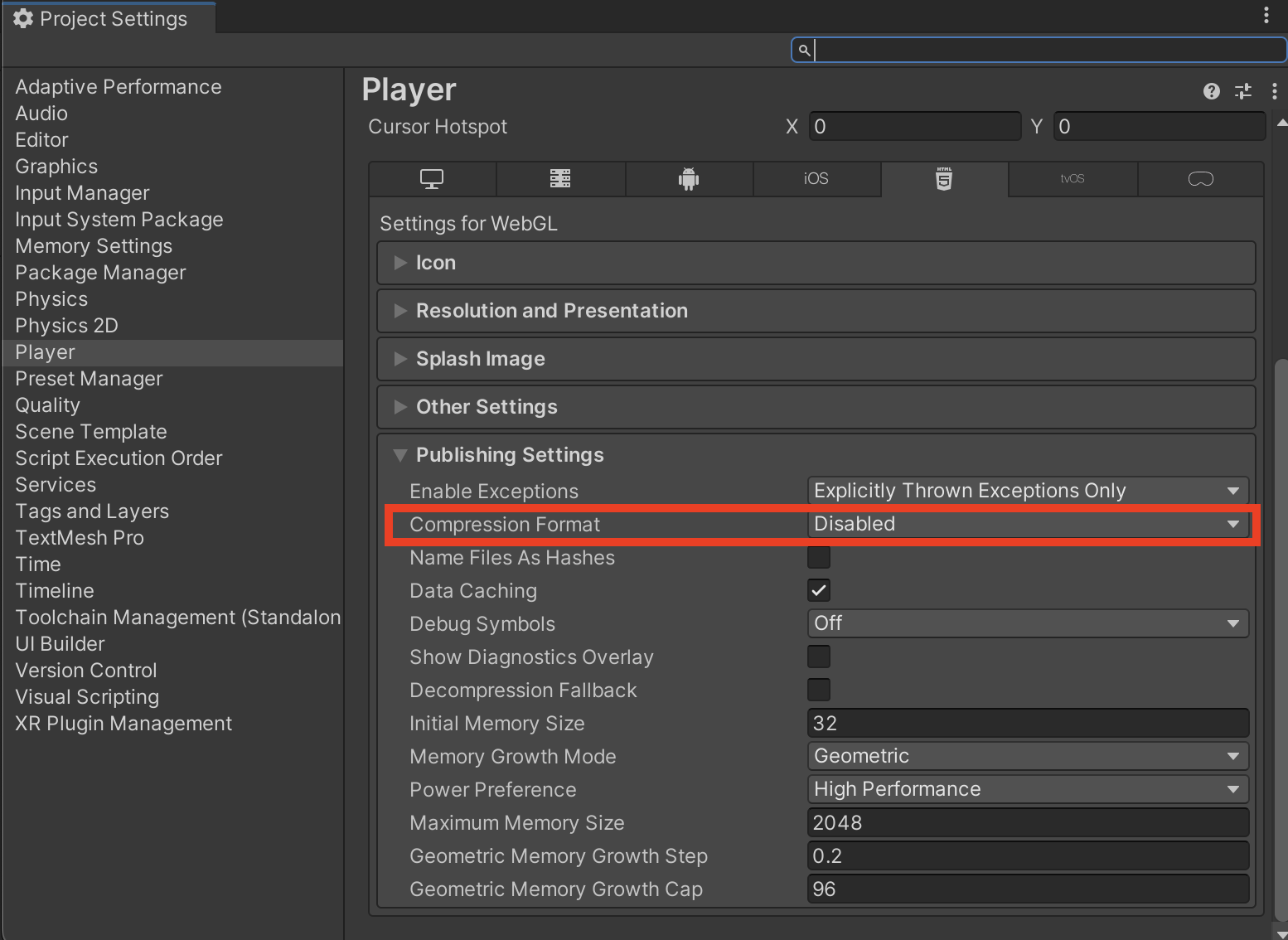
In the Unity Editor, go to `File > Build Settings` and select WebGL as the platform. Additionally, we recommend going to
`Player Settings > Publishing Settings` and setting `Compression Format` to `Disabled`. This way you won't have to
decompress the files each time you go to upload them to the Madder Developer Portal.
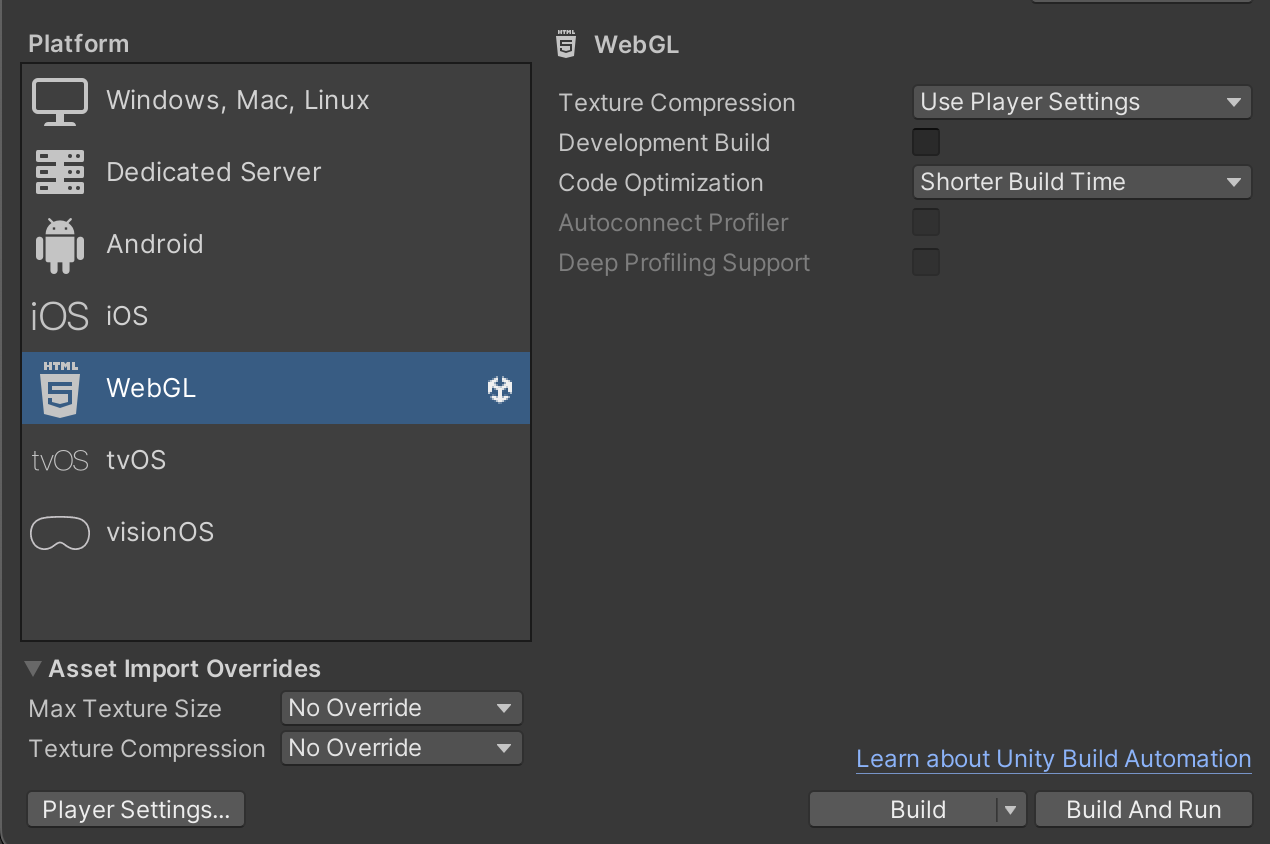
 Once you've done so, make sure you have have clicked the `Switch Platform` button in the `Build Settings` window so Unity
builds for WebGL, and click `Build`! Select a location to save the build, and Unity will create a folder with the build
files.
Once you've done so, make sure you have have clicked the `Switch Platform` button in the `Build Settings` window so Unity
builds for WebGL, and click `Build`! Select a location to save the build, and Unity will create a folder with the build
files.
 ## Upload Your Game
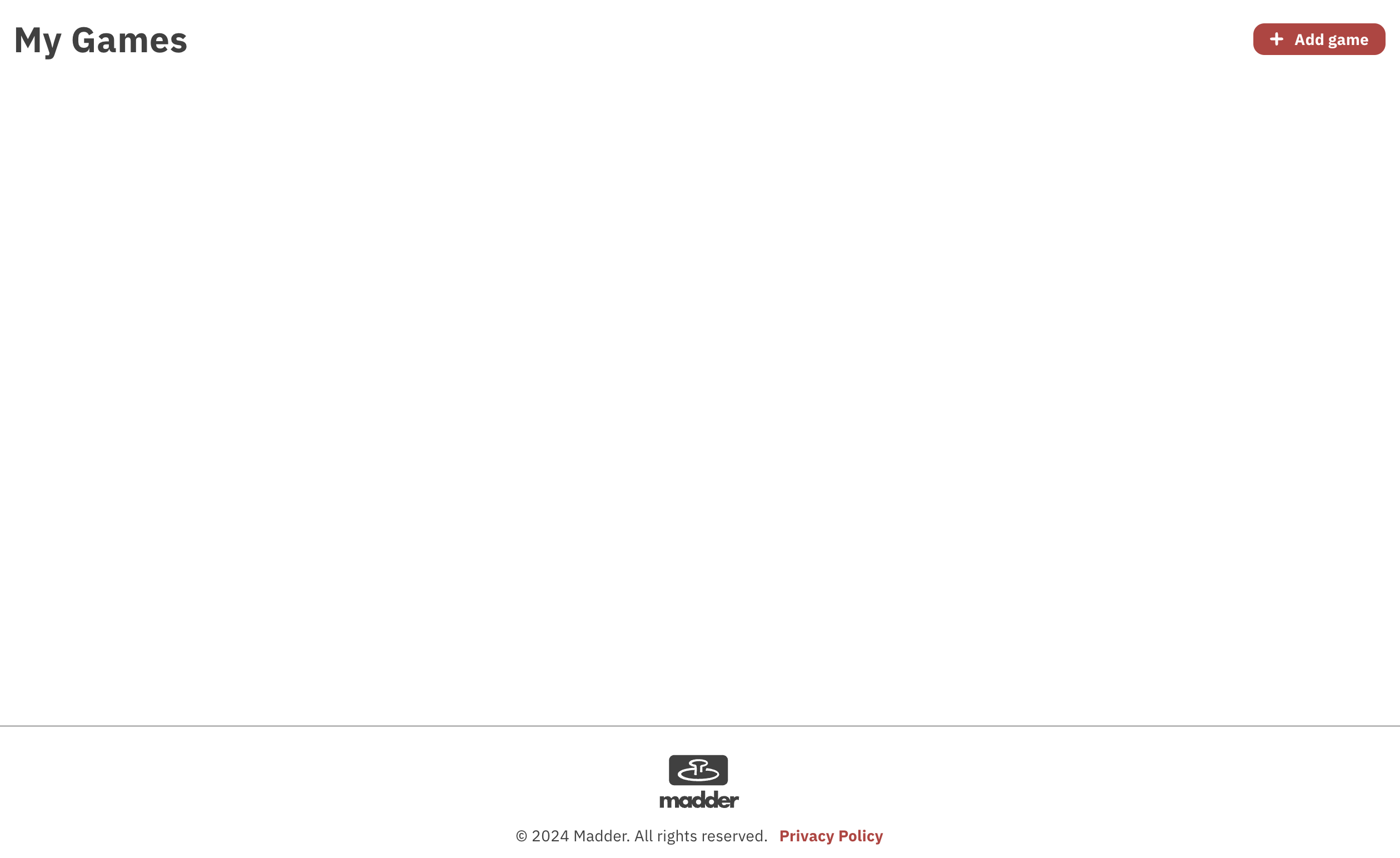
Now that you have a build of your game, you can upload it to the Madder Developer Portal. Go to the
[Madder Developer Portal](https://developers.maddergames.com/) and log in. You'll be redirected to a page titled
`My Games`. Click the `Add Game` button to create a new game.
## Upload Your Game
Now that you have a build of your game, you can upload it to the Madder Developer Portal. Go to the
[Madder Developer Portal](https://developers.maddergames.com/) and log in. You'll be redirected to a page titled
`My Games`. Click the `Add Game` button to create a new game.
 Here, you are given a number of prompts that you would fill out if you were submitting your game to the Madder Platform,
including a description, favicon, and cover image. You can also specify the maximum number of players you would like to
be able to connect to your game.
Here, you are given a number of prompts that you would fill out if you were submitting your game to the Madder Platform,
including a description, favicon, and cover image. You can also specify the maximum number of players you would like to
be able to connect to your game.
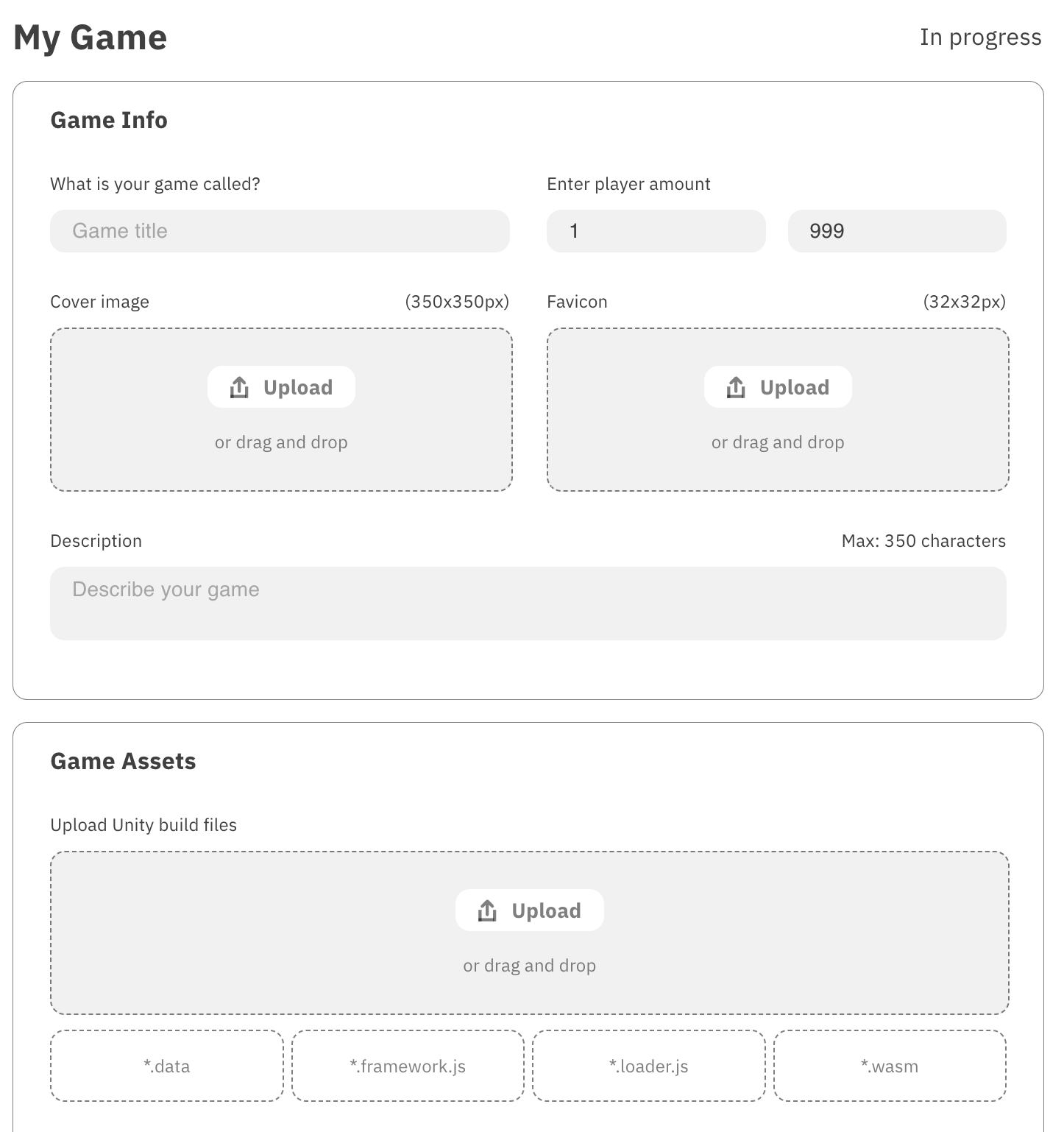 For now, we just want to test the game, so we'll give it the name `Test Game` and move on to uploading our files.
In the `Game Assets` section, you can click the Upload button or drag and drop your build files into the box.
Upload the files Unity created for you:
* A .data file
* A .framework.js file
* A .loader.js file
* A .wasm file
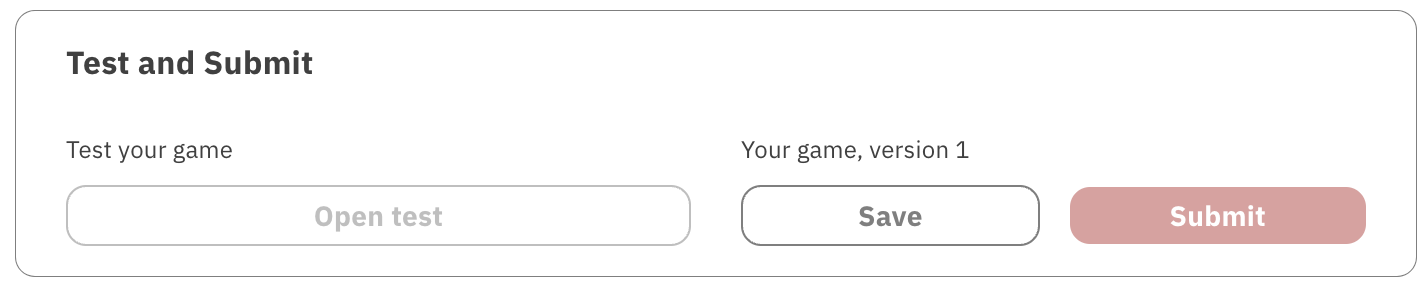
Once they've been uploaded, you'll see the `Save` button in the `Test and Submit` section become active. Click `Save` to
save your game.
For now, we just want to test the game, so we'll give it the name `Test Game` and move on to uploading our files.
In the `Game Assets` section, you can click the Upload button or drag and drop your build files into the box.
Upload the files Unity created for you:
* A .data file
* A .framework.js file
* A .loader.js file
* A .wasm file
Once they've been uploaded, you'll see the `Save` button in the `Test and Submit` section become active. Click `Save` to
save your game.
 ## Test Your Game
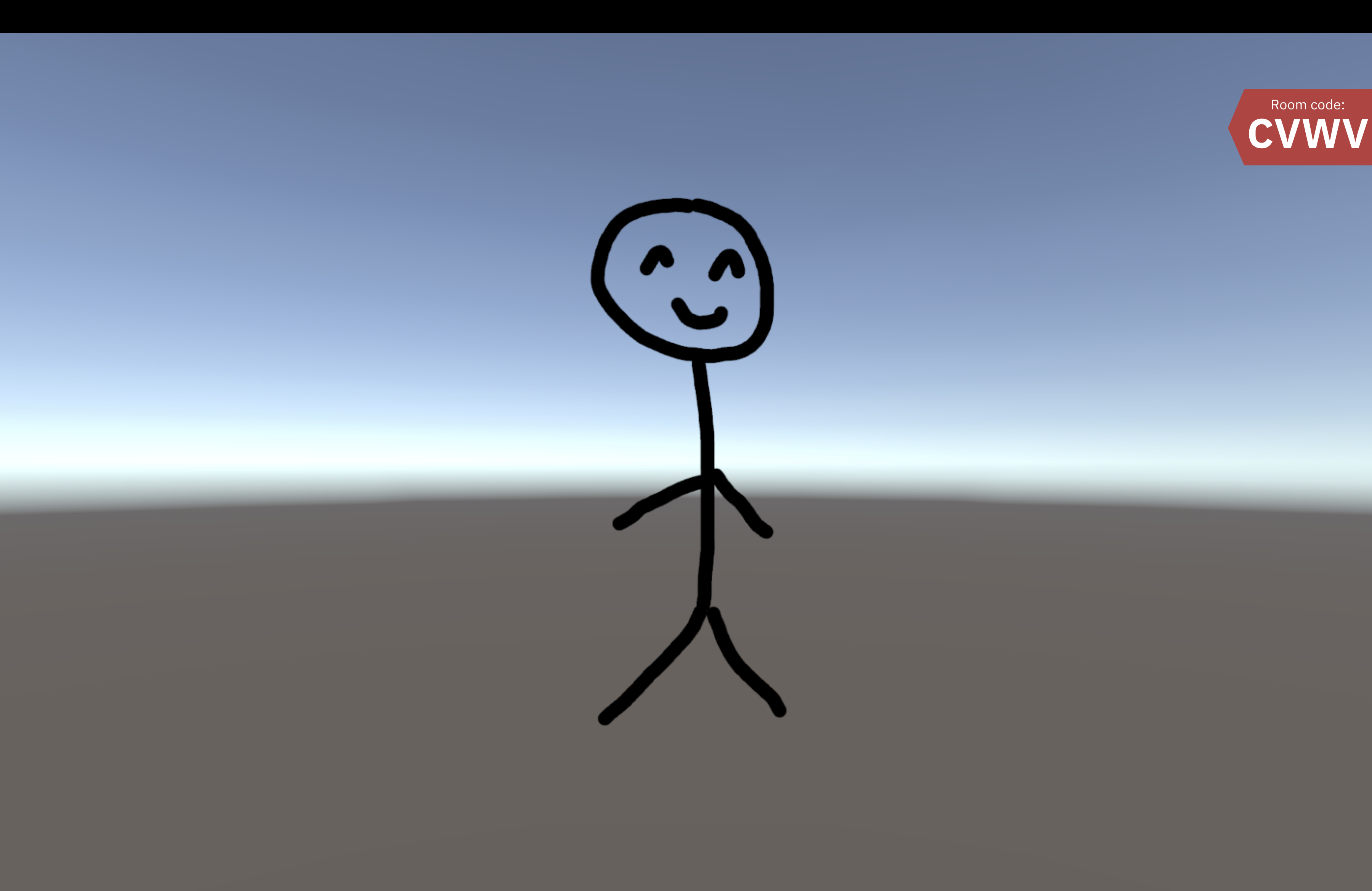
Once the save is complete, you can click the `Open test` button to test your game. Your game will start in fullscreen
mode, just like you'll see it on the Madder Console. Additionally, because we called `ShowCode()` in the `Game Manager`
on `Start`, the room code will be displayed on the screen.
Enter the room code into the Madder Controller app on your phone, and you will see the same stick figure you saw in the
Unity Editor. You can now test your game with the Madder Controller app! (Try pressing circle to see the stick figure
move faster!)
## Test Your Game
Once the save is complete, you can click the `Open test` button to test your game. Your game will start in fullscreen
mode, just like you'll see it on the Madder Console. Additionally, because we called `ShowCode()` in the `Game Manager`
on `Start`, the room code will be displayed on the screen.
Enter the room code into the Madder Controller app on your phone, and you will see the same stick figure you saw in the
Unity Editor. You can now test your game with the Madder Controller app! (Try pressing circle to see the stick figure
move faster!)
 If you have a second device you would like to join the game with, do so--you'll see a second stick figure appear that
is controlled by the second device.
To see debug logs from your game, you can open the browser console. In Chrome,
you can do this by right-clicking on the page and selecting `Inspect`. Then,
click on the `Console` tab. Any `Debug.Log` calls from your game will appear
here.
To exit fullscreen, press `Escape` on your keyboard or move your mouse to the top of the screen and the Madder banner
will appear. Click the button in the top right to exit fullscreen.
To exit the test, move your mouse to the top of the screen so the Madder banner appears, and click the `Exit` button.
If you have a second device you would like to join the game with, do so--you'll see a second stick figure appear that
is controlled by the second device.
To see debug logs from your game, you can open the browser console. In Chrome,
you can do this by right-clicking on the page and selecting `Inspect`. Then,
click on the `Console` tab. Any `Debug.Log` calls from your game will appear
here.
To exit fullscreen, press `Escape` on your keyboard or move your mouse to the top of the screen and the Madder banner
will appear. Click the button in the top right to exit fullscreen.
To exit the test, move your mouse to the top of the screen so the Madder banner appears, and click the `Exit` button.